What is WordPress?
WordPress is an online software tool for you to create your own website or blog.
What is a Content Management System (CMS)?
WordPress is a (CMS) content management system. it is a free tool or platform that helps you create, edit, and manage your own website or blog without needing to learn code.
WordPress is open-source. That means it is free software that anyone can download and use.
WordPress Themes and Plugins
There are two important things in wordpress when you start building your WordPress site themes and plugins. WordPress allows you to install plugins to add extra functionality to your website.
What is a theme?
A theme is a website template with a certain layout and design.
Installing a theme
To install a new theme, make your way to Appearance, click on Themes, and select Add New. Once you find the theme you are looking for, click on Install. And once installed, don’t forget to click on Activate.
If you have a theme in the form of a zip file, you can install it manually. Click on Add new, and then at the top, select Upload theme. Then, you can upload it from your computer.
Installing a Plugin
To add a plugin, navigate to Plugins in the WordPress dashboard and select Add New. Click Install then activate the plugin and your plugin will activated.
How to Get WordPress/Download?
Follow The Steps:
Step No.1 Go to WordPress official website the you will see the interface like this in below picture.
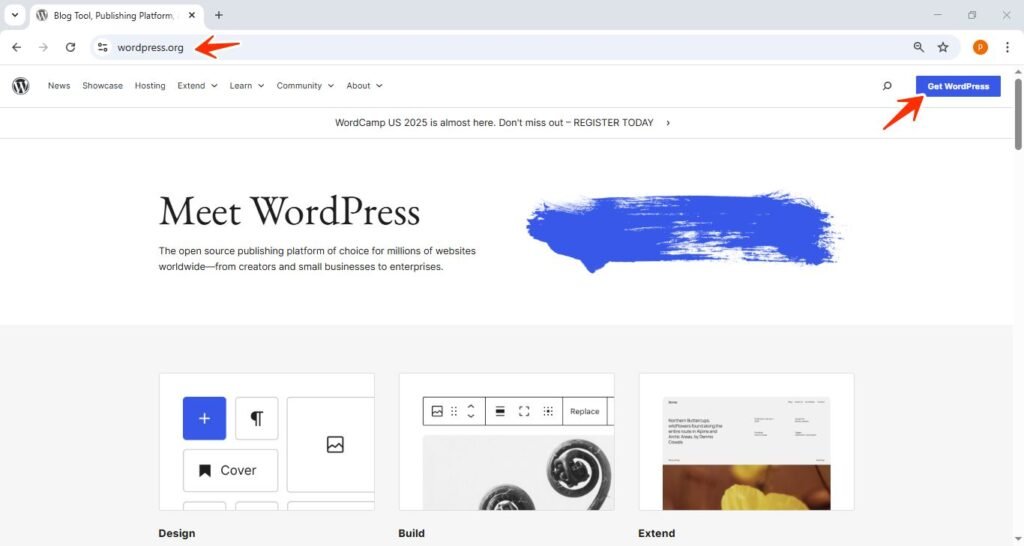
Now you can see Get WordPress button click on it.
Step No.2 Then you will redirected to another wordpress page called download.
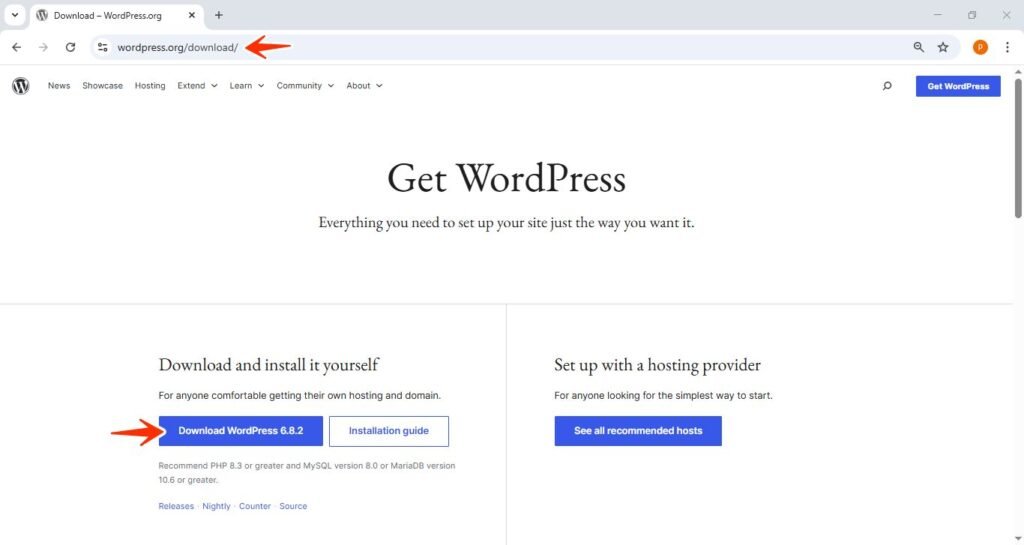
You will see page like this then click the download wordpress button for the latest version of wordpress.
How to create a new wordpress account?
Okay, If you want to create a new wordpress account follow the steps below.
Step No.1 visit wordpress.org/register page.
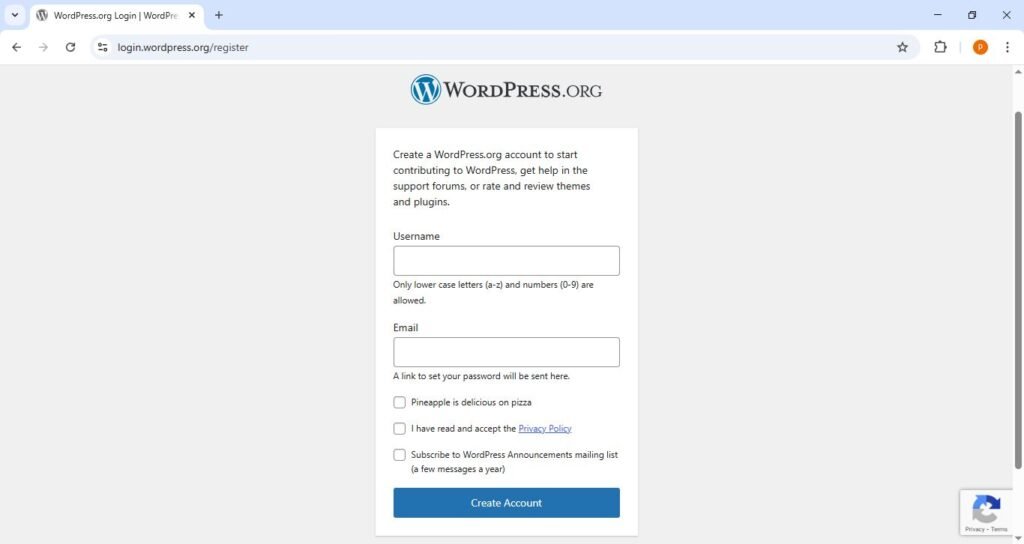
You can see the register page, now fill out with your details enter “username” and “email” tick the checkbox and hit the create account then you will redirected to create your “password” page, create a strong password then your account will be created then you can login.
If you already have an account then do not create a new account you should login only.
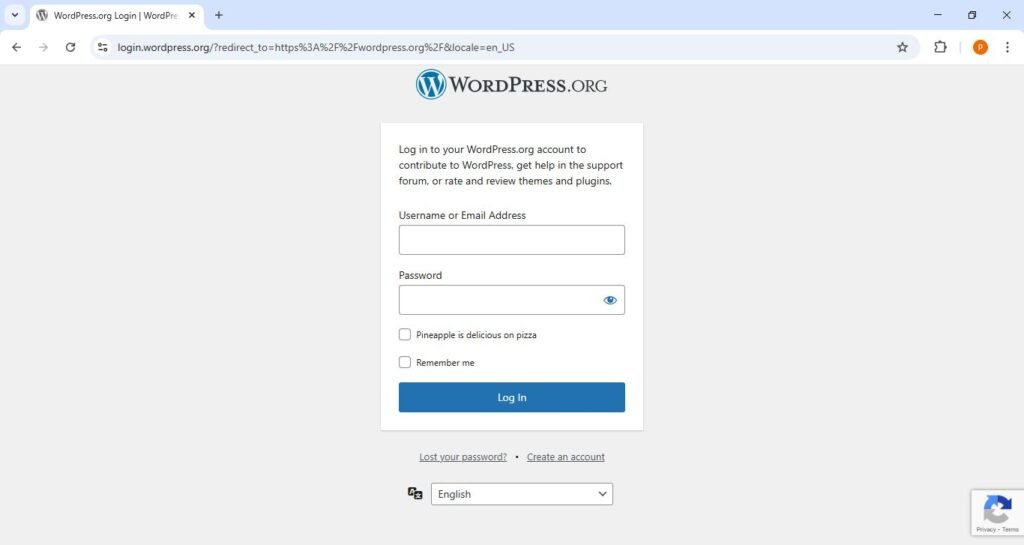
How to Log In WordPress?
Step No.2 Enter your username or email address to login to your account.
How to Install WordPress Locally In Your PC Hard Drive?
Installing WordPress locally means running it is on your own computer instead of a live hosting server. But there are some requirements to install wordpress.
Requirements to install the setup
You need some tools before starting.
- A local server (Apache)
- PHP
- MySQL (database)
There is a all in one package solution tool called xampp software it is a server.
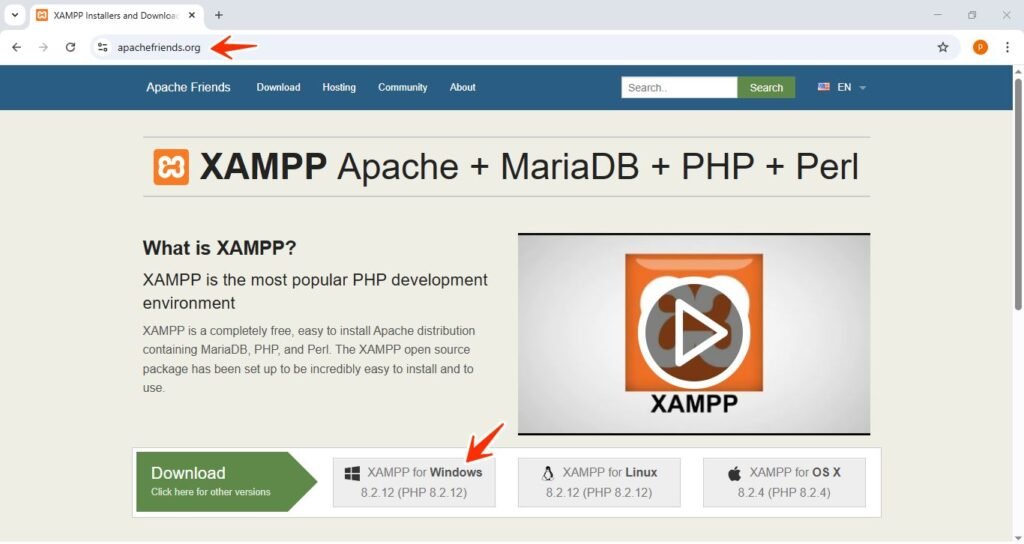
Step No.1 Download and Install XAMPP
- Download XAMPP
- Open your browser
- Go to the official website: apachefriends.org
- Click Download and choose the version for your operating system
- (Windows / macOS / Linux)
- Select a PHP version (PHP 8.x is recommended)
Install XAMPP
- Run the installer
- Click Next
- Select components:
- Apache
- MySQL
- PHP
- phpMyAdmin
- Choose installation location
- (Default:
C:\xamppon Windows) - Click Next → Install
- Finish installation
Step No.2 Start Apache and MySQL
- Open XAMPP Control Panel
- Click Start next to:
- Apache
- MySQL
- If both turn green, your local server is running successfully
- Test Your Server
- Open a browser
- Go to: localhost/
- If you see the XAMPP dashboard, it’s working
Step 3: Download WordPress
We have discussed about this step.
- Go to the official WordPress website: wordpress.org
- Click Download WordPress
- You will get a ZIP file
- Extract the ZIP file
Step No.4 Move WordPress to the XAMPP Folder
- Go to your XAMPP installation folder: C:\xampp\htdocs\
Step No.5 Create a Database for WordPress
Database is used to store your all media files and information.
Open phpMyAdmin
- Open your browser
Go to:localhost/phpmyadmin
Create Database
- Click Databases
- Enter database name:
wordpress - Click Create
Step No.6 Configure WordPress
Open WordPress Installer
- Open browser
- Go to:
localhost/wordpress - Choose Language
- Select your preferred language English or another one
- Click Continue
Step No.7 Enter Database Details
| Field | Value |
| Database Name | wordpress |
| Username | root |
| Password | leave it empty |
| Database Host | localhost |
| Table Prefix | wp_ |
Click Submit Run the installation
Step No.8 WordPress Site Setup
Now fill in site information and details
Required Details
- Site Title Your website name
- Username Admin login name
- Password Strong password
- Email Admin email
- Uncheck “Discourage search engines” Don’t check this if you checked this by mistake your site will not visible to any search engine.
- Click Install WordPress
Step No.9 Login to WordPress Dashboard
After installation is complete
- Click Log In
- Go to:
localhost/wordpress/wp-admin - Enter username & password
Congratulations! WordPress is installed locally.
Now you can customize your website design and layout, colors and more things as you want to see it.
There is not only way to Install wordpress locally into your personal computer, You can also install wordpress with live server, If you have bought any web hosting service from any hosting service providers.
If you do not know or not familiar about web hosting service then, I will recommend some web hosting providers, the first is hostinger and you can search more from google for better results and which gives you cheap costs plans and easy to use and simple user interface to understand.
If you want to make your website live on the internet and public can access and visit your site you should buy your own domain name to live your site world wide.
And If you do not know how to buy a domain name and point a domain to wordpress website you can search on google you will get different guide blogs results on the web.
In future, I will write and publish these two blogs posts with detailed and step by step guidance for you to understand it.
Please feel free to comment below in the comment section that how much this blog post was helpful for you and how much you learned from it.
Now let’s take a little short overview on the domain name DNS and web hosting.
Domain Name
What is a domain Name?
A domain name is your address on the global network which we called an internet. As like we have our home’s address in our city area.
Web Hosting
What is web hosting?
Web hosting is the home place where your files are stored. Let’s breakdown the simple example to understand quickly.
Example: I take a house on a rent then i will store my thing in my house place that is why i have to pay them their fixed annually price.
Domain = Address and Web Hosting = House
If you like this tutorial please comment below in the comment section.
really good article and helpful
Win789vn8, not gonna lie, it caught my eye. I am trying my luck. See you